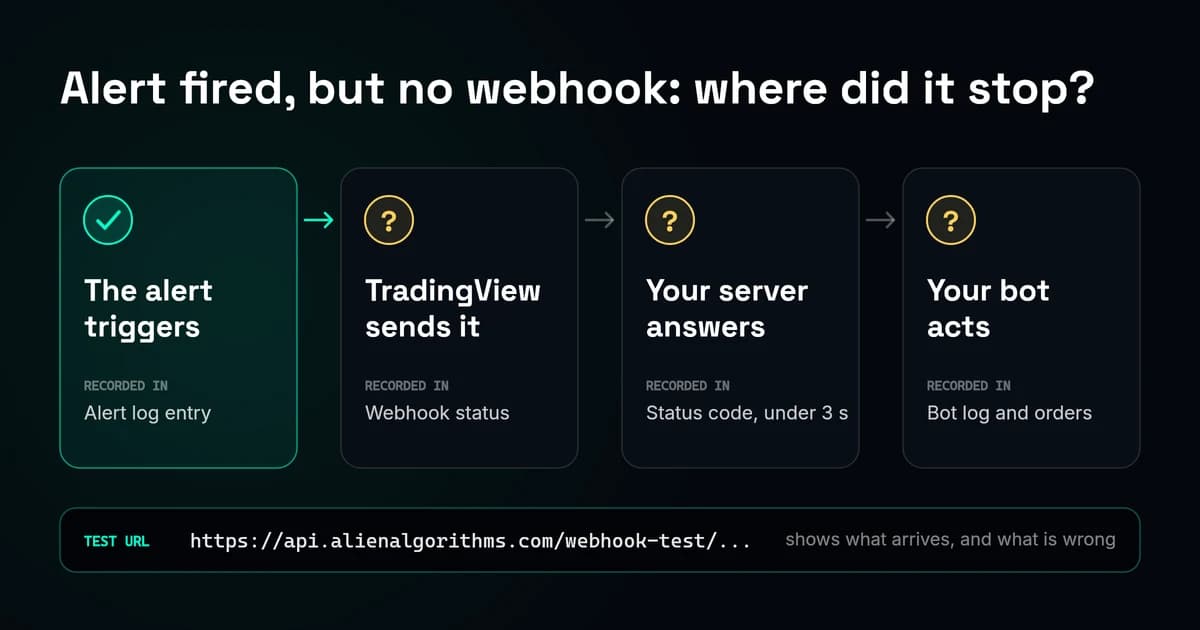
Where a webhook can fail
Between the chart and your bot, four things have to happen, and each one leaves its own record. Check them in order. The last one that left a record worked; the problem is in the one after it.
The alert triggers
Recorded in
An entry in TradingView’s alert log
When it fails here
No entry at that time. Nothing was sent.
TradingView sends it
Recorded in
The Webhook status of that entry
When it fails here
An error such as a timeout or a refused connection.
Your server answers
Recorded in
Your server’s request log
When it fails here
A 4xx or 5xx status, or no answer within three seconds.
Your bot acts
Recorded in
Your bot’s log and the order history
When it fails here
A success status, then nothing happens.
Read the Webhook status first
In TradingView, open the Alerts panel and switch to its log. Find the entry for the moment the alert should have fired, and read its Webhook status column. It answers the first two questions at once: did the alert trigger, and did TradingView manage to send the request.
| What the log shows | What it means | Where to look next |
|---|---|---|
| No entry at that time | The alert did not trigger, so no webhook was sent. | The alert itself: its condition, how often it may trigger, whether it has expired or was stopped, and whether it runs on old script settings. |
| An entry with an error | TradingView tried to send the request, and it failed. | The error text. The error table below matches each one to a fix. |
| An entry with a successful status | Something at your URL answered with success: your server, or a proxy in front of it. | Your server’s and your bot’s own logs. See Delivered, but nothing happened. |
Send a test alert to a free test URL
To see exactly what your alert sends, point a test alert at a URL that shows every request it receives. Our free webhook tester gives you one. Each request shows up with its message, content type and sender, and the tester explains anything that would stop a bot from reading it.
Free toolTradingView Webhook TesterA temporary webhook URL that shows every request it receives: the message, its content type and its sender, with what would stop a bot from reading it.Open the tester- 1Open the webhook tester and create a test URL.
- 2In TradingView, create a new alert for the test. Leave the alert your bot depends on as it is.
- 3In the alert’s Notifications, turn on Webhook URL and paste the test URL.
- 4Use the same kind of alert and the same message as your real one, or the example below. Swap every password, API key or secret for a dummy value: real credentials never belong in a tester.
- 5Let the alert trigger, then read the result in the tester.
{
  "test": "webhook tester",
  "symbol": "{{exchange}}:{{ticker}}",
  "price": {{close}},
  "fired_at": "{{timenow}}"
}
The result tells you which half of the route to look at:
- It arrived and the message is valid. TradingView can deliver from your account, and the message you tested is fine. If the test used the same kind of alert and the same message as your real one, the problem is your own URL or what happens after it answers. Check the Webhook status error, or read Delivered, but nothing happened.
- It arrived, but the tester flags a problem. Fix the message first. A trailing comma, curly quotes or a
{{ticker}}without quotes turns JSON into plain text that a bot rejects. - Nothing arrived. Check the alert log. No entry means the alert has not triggered. Webhooks also need two-factor authentication on your TradingView account; without it, none are sent.
Match the Webhook status error to the fix
When a delivery fails, the alert log shows one of these messages. Each one points at a different part of the route. The numbers are HTTP status codes, the short answer your server gave.
| Error in the alert log | What it means | What to check |
|---|---|---|
| Redirection (3xx) | Your server sent TradingView to another address. | Use the final URL. A move from http to https, a changed path or a login page all end here. |
| Client Error (4xx) | Your server received the request and refused it. | 404: the path is wrong. 401 or 403: a missing secret, or a firewall that blocks TradingView. 400, 415 or 422: the message is not in the format the server wants. 429: too many requests. |
| Server Error (5xx) | Your server failed while handling the request. | Your server’s log at that time. TradingView resends after these, except 504. |
| request took too long and timed out | No answer within three seconds. | Store or queue the request, answer, then do the work. A server that places the order before it answers is the usual cause. |
| this URL isn’t allowed, couldn’t find this domain, the server couldn’t be reached | TradingView cannot use or find the address. | A typo, localhost, a private address, or a domain with no DNS record. The URL has to be public. |
| server responded over HTTP instead of HTTPS, couldn’t establish a secure connection | The secure connection failed. | The certificate and the HTTPS setup on port 443. |
| server refused the connection, server closed the connection unexpectedly, connection was closed due to inactivity | The server is down, overloaded or too slow. | That the server is running, listens on port 80 or 443, and answers quickly. |
| server sent an invalid response, server behaved unexpectedly | The answer was not a valid HTTP response. | An error in the server’s code, or a proxy in front of it. |
| IP isn’t allowed | The address points to a private or restricted IP. | Use a public address, not one inside your own network. |
| something went wrong | An unknown or temporary error. | Send the test again. If it repeats, check the server. |
TradingView explains each message in What do errors mean when sending webhooks?
The usual causes, and how to check each
The URL is not reachable from the internet
TradingView’s servers send the request, so the address has to work from outside your network. Localhost, a private address such as 192.168.1.20 and a computer that is switched off all fail. TradingView only accepts ports 80 and 443 and does not support IPv6, so the host needs an IPv4 address. If a service gave you the URL, copy it again from that service rather than fixing it by hand.
The server takes longer than three seconds
TradingView cancels a request after three seconds. A receiver that calls an exchange, waits for a fill or writes to a slow database before it answers times out, even if the order still goes through. Check the request, store or queue it somewhere it cannot be lost, answer with 200, and do the work afterwards. Answering before it is safely stored can lose a signal for good if the store then fails. A free host that sleeps when idle can miss the first alert after a quiet spell while it starts up.
The message is not valid JSON
TradingView sends the message as application/json only when it is valid JSON, and as text/plain otherwise. A bot that expects JSON then refuses it, often with a 400 or 422, or ignores it. The usual causes are a comma after the last field, curly quotes from a phone or a document, a text placeholder such as {{ticker}} without quotes, and NaN in a number field. The webhook tester points at the exact line, and our TradingView webhook JSON guide shows how to write the message.
Two-factor authentication is off
TradingView only allows webhook alerts when two-factor authentication is on for the account. Without it, no webhook is sent at all.
A firewall or bot protection blocks TradingView
Cloudflare and similar services can challenge or block requests that do not come from a browser, and an alert does not. The log then shows a 403 or another client error. Let TradingView’s four addresses through: 52.89.214.238, 34.212.75.30, 54.218.53.128 and 52.32.178.7.
The alert runs on old settings
When you create an alert on a script, TradingView saves a copy of the script and its inputs, with the chart’s symbol and timeframe, and the alert keeps running on that copy. Change an input or update the script afterwards and the chart moves on, but the alert does not. Delete the alert and create it again. The Pine Script alerts manual describes this.
The alert was stopped
TradingView stops an alert that triggers more than 15 times in three minutes. Change its condition or how often it may trigger, then start it again. See Alert was triggered too often and stopped. A script that hits a runtime error also stops calculating, and an alert on it cannot trigger: a red error icon in the script’s status line on the chart shows the error.
TradingView has a delivery problem
If an endpoint that worked for weeks starts failing with nothing changed on your side, the cause can be on TradingView’s end. Compare the times of the failed deliveries with your server’s log, check TradingView’s status page, which reports Alerts as a service, and send TradingView support the alert name, the times and the exact Webhook status errors. A status page that shows everything working does not prove every webhook went out.
Placeholders are not filled in
TradingView fills in placeholders such as {{close}} in the alert’s Message box and in alertcondition() messages. A script’s alert() call sends its text exactly as the script built it, so placeholders in it arrive as typed. Build the values into the string in Pine with str.tostring() instead.
Delivered, but nothing happened
A successful Webhook status means TradingView got a 2xx answer from your URL. It does not prove your bot received the message, let alone acted on it: a proxy or gateway in front of the bot can answer too. Check these, in order:
- Your bot’s own log for that minute. Most bots log every request they skip, and why.
- The fields your bot needs. A missing field, a different field name or a number sent as text is often skipped without an error.
- The symbol. BINANCE:BTCUSDT, BTCUSDT and BTCUSDT.P are three different strings, and an exchange API usually wants the plain one.
- The secret or passphrase, if your bot checks one. A mismatch is usually rejected without a sign.
- Price and size values. NaN or an empty value means the series had no value on the bar that fired.
- The exchange or broker: a rejected order, too little margin or a closed market all happen after the webhook succeeded.
Duplicate webhooks and double orders
If your server answers with a status between 500 and 599, except 504, TradingView sends the request again after five seconds, up to three more times. A server that places the order and then fails to answer cleanly can place it up to four times. See Webhook resubmission.
An alert can also trigger more than once on its own, depending on how often it is allowed to. Give each message an identifier that belongs to that one event, such as the symbol, the signal name and the bar time from {{time}} together: the bar time alone is not enough, since several signals can fire on the same bar. A resend of the same event carries the same identifier, so the bot can ignore one it has already handled.
Test the whole route again
A test that reaches the tester proves TradingView can deliver that alert. Your own receiver needs its own test. After a fix, test the route you actually use:
- Point the test alert at your bot’s URL and let it trigger.
- Check that the alert log shows a successful Webhook status.
- Check that your bot logged the request and did the test action once.
- Delete the test alert, so it cannot fire again by mistake.
If you use the Institutional Imbalance Framework, every event arrives through one alert as flat JSON with an event field. The IIF alerts documentation lists the events and their fields.
Sources
Questions
Why does my webhook URL work in a browser but not from TradingView?
A browser sends a GET request without a body. TradingView sends a POST request with the alert message as the body. A page can open in a browser while its webhook route refuses POST, expects another path or rejects the message format.
How long does TradingView wait for my server to answer?
Three seconds. TradingView cancels a request that takes longer, so store or queue the request, answer, and do any slow work afterwards.
Does TradingView retry a failed webhook?
Only when your server answers with a status between 500 and 599, except 504. TradingView then resends the request up to three times, five seconds apart. It documents no resends for other errors.
Which IP addresses send TradingView webhooks?
TradingView lists four: 52.89.214.238, 34.212.75.30, 54.218.53.128 and 52.32.178.7. Check its help centre before allowlisting them, in case the list changes.
Can I use localhost or my own computer as the webhook URL?
Not localhost or a private network address. TradingView’s servers send the request over the internet, so the address must be public, reachable over IPv4, and on port 80 or 443. A home server works only if it is reachable from the internet on those ports.
Why does my webhook arrive as text/plain instead of JSON?
TradingView sends application/json only when the whole message is valid JSON once placeholders are filled in. A trailing comma, curly quotes, a text placeholder without quotes or a NaN value makes it plain text.